
Mobile phones have become a huge part of my daily life, and I rely on apps for everything from chatting with friends to shopping and banking. But lately, I've noticed a rise in concerns about privacy, especially when it comes to apps using the camera. If you’re like me, you probably want to know exactly which apps are accessing your camera and how to spot if one could be snooping on you. Here’s a super detailed walk-through on how I keep tabs on my camera permissions and protect my privacy against unwanted spying.
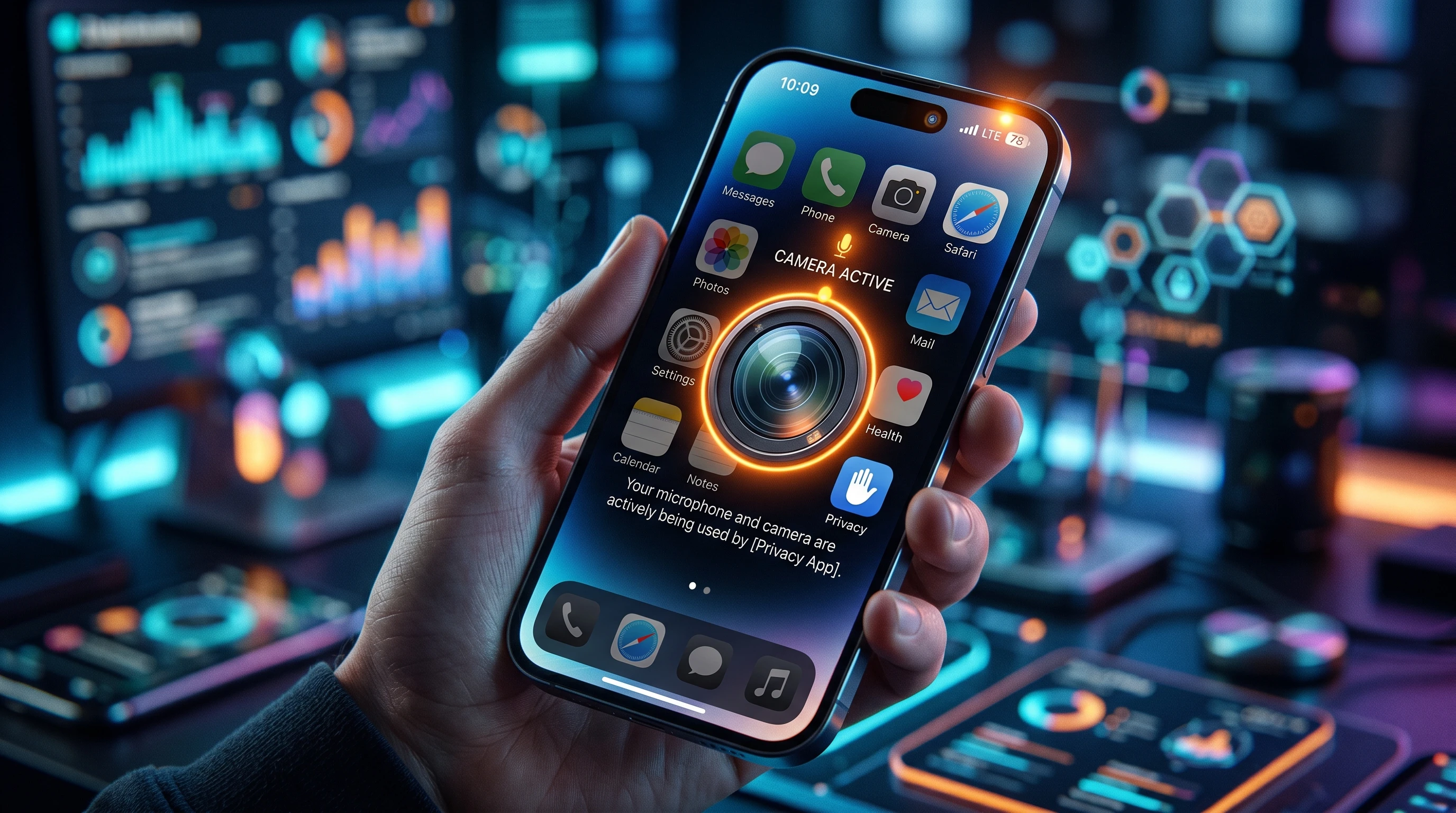
Why Should I Care About Apps Spying Through My Camera?
App permissions might seem boring at first but, when it comes to the camera, the stakes get higher. My phone’s camera sees everything—from Zoom calls to family moments. Malicious apps could quietly snap photos or videos without me knowing. This could result in privacy leaks, identity theft, or intrusive targeting. Big news stories have exposed popular apps abusing access, and this shows it’s not just "sketchy" apps users need to keep an eye on. Understanding the issue is the first step in protecting myself.
Camera access is often requested for practical reasons: scanning QR codes, posting photos, or video calls. But some apps sneak in camera permissions for reasons that don’t add up. Figuring out which ones genuinely need it and which might cross the line helps keep my phone—and my personal space—secure.
Understanding Camera Permissions: What Am I Allowing?
When I download a new app, I usually get hit with a permission prompt: “Allow access to camera?” It pays to read those popups. Apps need permission before they can use hardware like the camera or microphone. If I say yes, the app can turn on my camera anytime it’s running, and—with background permissions—sometimes even when it’s not open in the foreground.
- Foreground access: The app uses the camera only while I'm actively using it.
- Background access: The app might be able to turn on the camera when I’m not using it directly.
Some apps are upfront about why they want camera access, while others leave their intentions vague. It’s always worth checking settings for each app and thinking, "Does this app really need my camera to work?"
How to Find Out Which Apps Have Camera Access on My Phone
Regularly checking which apps have camera access keeps me aware of what’s going on behind the scenes. The step-by-step depends a bit on whether you’re using an Android or iPhone, but the general idea remains consistent.
For Android Devices
- Go to Settings: Open the Settings app (the gear icon).
- Tap on Privacy or Apps & Permissions: The specific section might vary by device. On some phones, you go through "Privacy," while others use “Apps” or “Permissions.”
- Open the Permission Manager: Find “Permission Manager” or “App Permissions.”
- Select Camera: You’ll get a list of all apps that have asked for access. It’ll usually say “Allowed” or “Denied” next to each.
From there, I can turn camera access on or off for every app. I keep access only for apps I trust and know use the camera for clear reasons, like my phone’s built-in camera app, Instagram, or video chat tools.
For iPhones (iOS)
- Go to Settings: Tap the Settings app.
- Scroll to Privacy & Security: Tap “Privacy & Security.”
- Select Camera: This section lists every app that’s requested camera access, with toggles to switch permissions on or off.
I double-check every app on this list. If I spot an app I don’t remember granting permission to, or one I don’t use for photos or video, I switch its access off right away.
Spotting Suspicious Activity: Signs an App Might Be Using Your Camera
It’s not always obvious when an app’s doing shady things with the camera, but there are clues I watch out for:
- Camera indicator lights: Modern phones often show a green or orange dot when the camera or microphone turns on. If I see this indicator when I’m not recording or on a video call, that’s a big red flag.
- Strange battery drain: Using the camera drains battery and warms up the phone. If I notice my battery dying faster than usual, especially when I haven’t been using camera-hungry apps, I check what’s running.
- Data usage spikes: Apps secretly recording might upload photos or videos in the background, leading to unexpected data usage.
- Odd files in my gallery: If I see pictures or videos I know I never took, I consider which apps could have saved them.
If I notice any of these signs, I review app permissions right away and uninstall anything suspicious. Trusting my gut can go a long way in keeping my device secure.
Quick Prevention Tips: Cutting Off Sneaky Camera Access
- Review permissions regularly: I set a calendar reminder to scan my app permissions every couple of months. Old or unused apps can quietly keep their access until I turn it off.
- Limit permissions to "While Using the App": Most recent Android and iOS versions let me grant camera access only when the app is in use. This blocks background spying.
- Uninstall what I don’t use: If I don’t remember installing an app, or haven’t used it in months, I delete it. Less clutter means fewer privacy risks.
- Install apps from trusted sources: I stick to Google Play Store or Apple App Store whenever possible, and always check reviews for privacy complaints.
- Cover my camera: I use a sliding webcam cover or even a bit of tape, just for peace of mind if something slips through.
Making Sense of Permissions: Which Apps Really Need Camera Access?
Some apps genuinely need the camera to function—taking photos, scanning codes, or handling video calls. But sometimes apps request access just for convenience or extra features, not for core functionality. Here’s how I decide what to allow:
- Camera app: Needs the camera, obviously.
- Messaging and video chat apps (like WhatsApp or Zoom): Needs camera access for video calls.
- Social media (Instagram, Snapchat): Needs camera access to post stories or live video.
- QR code scanners: Uses the camera to scan codes.
A weather app, calculator, or flashlight app shouldn’t need camera access. If one does, that’s a sign to check out what’s going on or uninstall it.
Real-World Privacy Scenarios: Examples and Cautionary Tales
I’ve noticed lots of stories about both popular and obscure apps misusing camera access. For instance, some social media apps were caught accessing cameras in the background or in “test” modes, only discovered after users spotted the camera indicator light up unexpectedly. Even well-known companies sometimes make so-called “accidental” mistakes, so I never assume an app is totally safe based on brand alone.
There have also been cases where flashlight or photo editing apps sneak malware onto phones—secretly taking photos or video for blackmail or data harvesting. Plenty of these tales drive home why it’s super important to review permissions and look for odd app behavior, even if an app seems totally harmless at first glance. Keeping my phone secure is worth the few minutes spent double-checking!
Advanced Techniques: Tools and Extra Steps for the Privacy-Conscious
If I want to go a little deeper, there are a few tricks and tools I use for extra reassurance:
- Install a privacy guard app: Apps like Access Dots (Android) or Indicator+ (iPhone) make the camera or microphone indicator bigger and easier to notice, so I don’t miss any sneaky background use.
- Use app access logs: Some privacyfriendly Android phones and custom ROMs let me view a history of which apps turned on the camera and when. This info helps me spot patterns or spot apps doing things they shouldn’t.
- App updates and official security patches: I always install the latest OS updates, since security fixes block known exploits for microphone and camera misuse. Staying updated gives a boost to my overall device security.
- Avoid sideloading apps: Sideloading (installing apps from outside official stores) pumps up the risk by bypassing security checks. If I do need to sideload, I research the app and scan it with security tools first to make sure I’m not inviting any unwanted guests onto my device.
Combining these tactics with regular permission checks gives me pretty solid peace of mind. I also share these steps with friends and family to spread the word and keep everyone safer online.
App Permissions Gone Wrong: Challenges and What to Watch For
- Permission creep: Apps that start off requesting only basic access might ask for more permissions in later updates. I read update notes and re-check permissions after updating apps to make sure nothing sneaky has slipped in.
- Confusing permission prompts: Some apps try to convince me to allow camera access by showing “scare tactics” (“The app might not work unless...”), even if camera use isn’t actually needed for their main features.
- Shared devices: If I share my phone with family or friends, I make sure they know about privacy risks and don’t give unnecessary permissions to new apps without checking with me first.
Handling Permission Creep
App developers sometimes stretch what their app does, adding camera use for new features I may not want. When I get a permission request after an update, I pause and see if those new features really add to my experience or just open the door to more data collection. If an app’s permissions change without a real reason, it’s probably worth looking for an alternative or disabling camera access until I need it.
Keeping an Eye on Third Party Libraries
Many apps use code from other companies, called SDKs or third party libraries, to add features or show ads. Sometimes, these background bits of code can request extra permissions, and app creators may not even realize what’s being collected. Security researchers sometimes stumble upon these hidden permission grabs, so I look for news or privacy reports about my favorite apps. Reading privacy reviews and supporting apps with a clear privacy policy is a smart move.
FAQ: Common Questions About Camera Permissions and Spying Apps
Question: Can apps use the camera without permission?
Answer: Apps need my permission to access the camera the first time. But, if I grant permission, they can use it unless I remove that access. That’s why regular checks are critical for staying safe.
Question: How do I know if the camera is being used secretly?
Answer: Watch for the indicator light on the status bar—green or orange on most phones. Battery drain or strange data spikes can also clue me in if something odd is happening with my phone’s camera use.
Question: Are iPhones safer than Android for camera privacy?
Answer: Both platforms have upgraded privacy features recently. iPhones restrict background app use and make permissions easier to manage, but every device needs regular permission checks and software updates for best security.
Question: What should I do if I suspect an app is spying on me?
Answer: Disable the app’s camera permission, uninstall the app, update your phone’s software, and run a security scan. If you see odd files or are worried about security, a factory reset is an option (after backing up your data).
Final Thoughts on Keeping Camera Privacy Tight
It’s easy to ignore app permissions when I’m in a hurry to use something new, but camera access deserves extra attention. Being hands-on with app permissions, watching for signs of odd camera use, and not hesitating to delete something that feels off goes a long way to protect my privacy from would-be snoops. The payoff isn’t just avoiding awkward surprises—it’s keeping control over my most personal moments and making sure my device works the way I expect. Taking these practical steps means I stay in charge of my own privacy every day.